![logo-Clare-white-TM.png]](https://www.clarecontrols.com/hs-fs/hubfs/logo-Clare-white-TM.png?height=40&name=logo-Clare-white-TM.png)
In this article, we cover the steps required to perform to swap out a ClareOne Panel in FusionPro on a customers account.
- Edit existing account under FusionPro
- If configured for Monitoring Services, please deactivate Monitoring Services.
Related Article: How to disable security monitoring- Click on Service Plan tab
- Capture current settings for monitoring services
- Click the Edit button next to monitoring services
- Click the Deactivate button
- If configured for LTE, please deactivate the LTE service.
- Click on Service Plan tab
- Click the Edit button next to Cellular Account Status
- Click the Deactivate button
- Click on active UUID link displayed above the gray account toolbar

- Replace old UUID/Serial/IMEI/ICCID with new UUID/Serial/IMEI/ICCID from replacement device
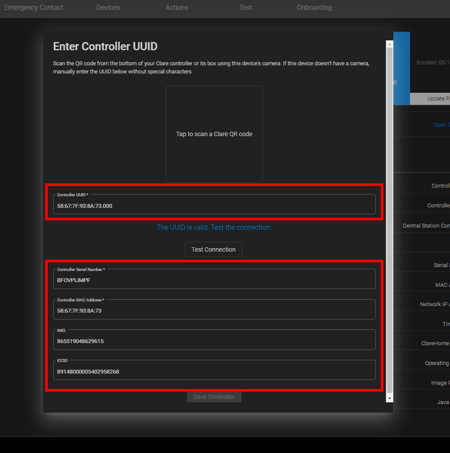
- Click Test Connection Button
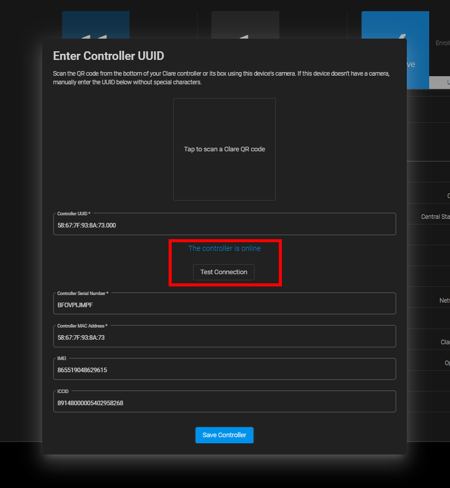
- If prompted, click the Validate Controller Button
- Click Save Controller Button
- If needed, reactivate Monitoring Services.
- Click on Service Plan tab
- Click Edit next to monitoring services
- Enter service plan settings
- Click Save Button
- If needed, activate Cellular Services
- Click on Service Plan tab
- Click Edit next to Cellular Account Status
- Click Activate Button
- Add security zones to the replacement ClareOne Panel.
- Add devices to the replacement ClareOne Panel.
- Test and verify functionality of the new ClareOne Panel.
Last Updated: 06/11/2021